Making changes to your local copy of the Tax Calculator
This document provides examples of two different kinds of changes to your local copy of the Tax Calculator. The first example illustrates changing the numerical value of a tax parameter that already exists in the Tax Calculator code. The second example illustrates adding a new tax parameter and its associated logic that do not already exist in the Tax Calculator.
Example 1: Changing the value of an existing tax parameter
In this example, we make a simple change in the file that stores the Tax Calculator’s tax parameters. The process we outline below is similar to the steps you’ll take when you make changes in your own local tax-calculator directory.
1. Navigate to the relevant file and open it.
From your tax calculator directory, the path to the file that defines the tax parameters is:
tax-calculator/taxcalc/params.json
2. Identify the desired change.
Users may not be familiar with the acronyms AMTI and AMT used in the description of the Alternative Minimum Tax (AMT) exemption amount parameter. We want to include their full names in addition to the acronyms in the description that is highlighted below.
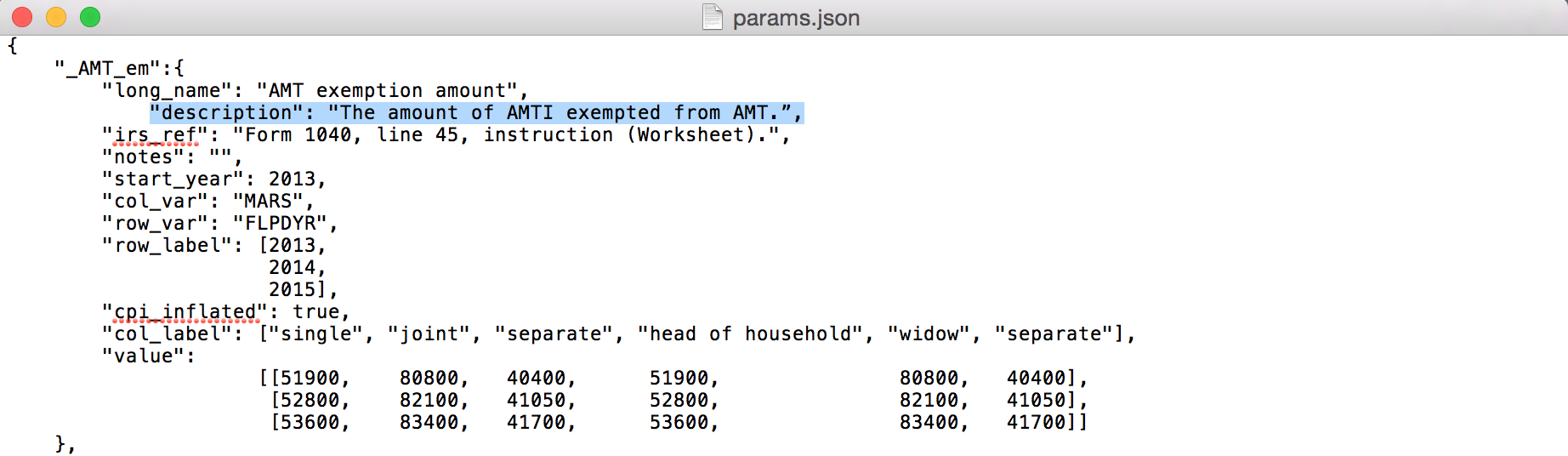
3. Make the change and save.
We add the written-out forms of AMTI and AMT and save the changes. The new code looks like this:
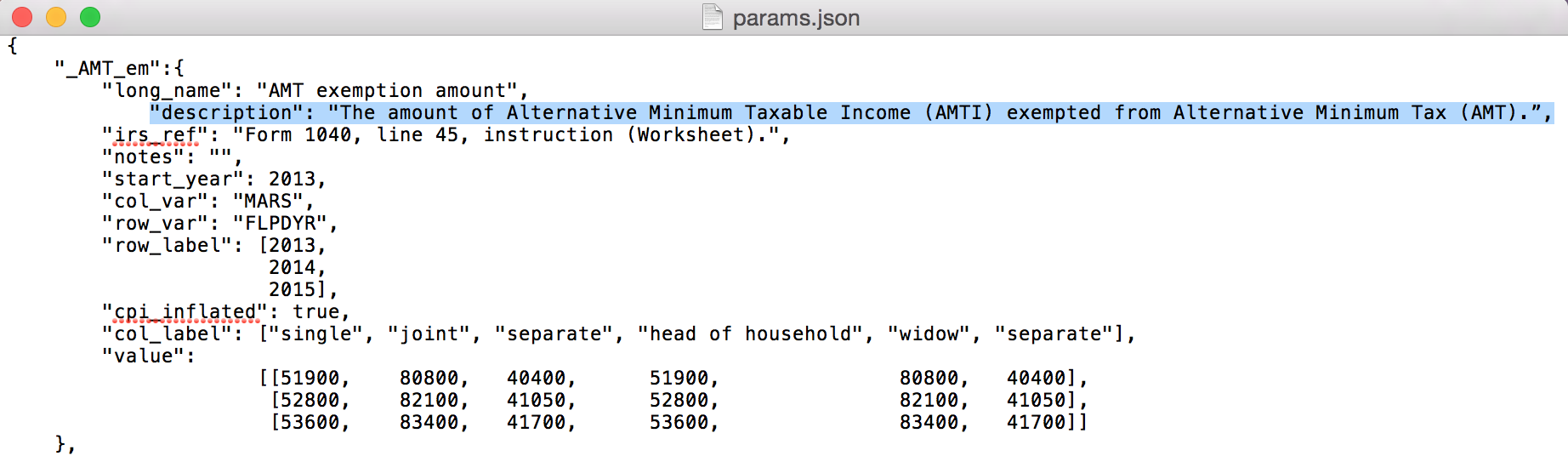
4. Test and save your parameter change.
For details on how to test and save your changes, return to the Contributor Guide and continue with Step 4 of the Workflow section.
Example 2: Adding a new tax parameter and associated logic
Some changes to the Tax Calculator require edits to the code in more than one place and in more than one file. In this example, we show how to add a tax parameter — a floor rate for the charitable deduction — to the calculator.
1. Open the tax parameters file.
We define tax parameters in params.json; all of the tax parameters that are already part of the Tax Calculator (for example, the personal income tax rates, the additional child tax credit rate, and the deduction for medical expenses rate) are in that file. The file params.json is your starting point.
From your tax-calculator directory, the path to params.json is:
tax-calculator/taxcalc/params.json
2. Add the new parameter.
The following code outlines the syntax and requirements for adding a new itemized deduction parameter in params.json. This code uses JavaScript Object Notation (JSON). You don’t need to be familiar with JSON to perform this task - just copy the following code, paste it anywhere in params.json [1], and fill out the relevant information between the each pair of asterisks.
"_ID_*Name*_*parametertype*":{
  "long_name": "Itemized Deduction: *Full deduction name* (*parameter type description*)",
  "description": "*A short description of the deduction.*",
  "irs_ref": "Form *IRS form number*, line *IRS line number*, ",
  "notes": "*Relevant comments or links to clarify the deduction.*",
  "start_year": *Four-digit year for when the deduction first becomes part of the tax code*,
  "col_var": "*Name of the value's column variable if applicable*",
  "row_var": "FLPDYR", #1
  "row_label": ["2013"], #2
  "cpi_inflated": Boolean *true* if the deduction is annually adjusted for inflation or boolean *false*,
  "col_label": ["*Labels of the value's columns if applicable*"],
  "value":     [*The parameter's value(s)*]
},
Treat the strings at points #1 and #2 as given. The completed code for the charitable deduction floor rate looks like this:
"_ID_Charity_frt":{
  "long_name": "Itemized Deduction: Charitable Deduction Floor (%, floor)",
  "description": "You are eligible to deduct your charitable expense when it exceeds this percentage of AGI.",
  "irs_ref": "Form , line , ",
  "notes": "This parameter allows for implementation of Option 52 from https://www.cbo.gov/sites/default/files/cbofiles/attachments/49638-BudgetOptions.pdf.",
  "start_year": 2013,
  "col_var": "",
  "row_var": "FLPDYR",
  "row_label": ["2013"],
  "cpi_inflated": false,
  "col_label": "",
  "value":     [0.0]
},
The new parameter’s name consists of _ID (for Itemized Deduction), the deduction’s name (_Charity), and the parameter’s type (_frt for floor rate). For other parameter name and type abbreviations, see parameter taxonomy.
The parameter has several attributes; the first year that we have a value for is 2013 and it is not adjusted for inflation. The charitable deduction floor rate is zero, because this parameter doesn’t exist in the current tax code - so, as of 2013, you are eligible to deduct your eligible charitable expense when it exceeds 0% of your Adjusted Gross Income.
We leave blank the attributes “irs_ref”, “col_var”, and “col_label” as there is no reference to our new parameter in the IRS forms and there is only one column in the “value” attribute.
3. Open the functions file.
Now that we’ve defined the new parameter in params.json, we need to tell the Tax Calculator to take into account that new parameter when it calculates taxes. The calculator’s functions that model tax logic and work with the tax parameters are in the file functions.py. Starting from your tax-calculator directory, the path to functions.py is:
tax-calculator/taxcalc/functions.py
4. Tell the calculator to perform the relevant function on the new tax parameter.
Find the function that works with the charitable deduction in functions.py by using this spreadsheet which documents the core data variables. First, search for the word charity and identify the core variables that handle charity data: E19700, E19800, E20100, and E20200. Second, search for the numerical portions of those variable names in functions.py and identify the function where they appear: ItemDed() (if you’re unfamiliar with Python, identify a function by the syntax “def FunctionName()”). The function ItemDed() calculates the total itemized deduction amount.
We add the parameter name that we defined in params.json to both the ItemDed() function and the @iterate_jit() decorator that is located above that function. There are several things to note when you do this:
- Surround the parameter name with quotes in @iterate_jit(). Do not surround the parameter name with quotes in def ItemDed().
- If the word “puf” appears the argument list of def ItemDed() make sure it comes last.
- Parameter names in params.json begin with an underscore. Do not include that underscore in functions.py; _ID_Charity_frt in params.json becomes ID_Charity_frt in functions.py.
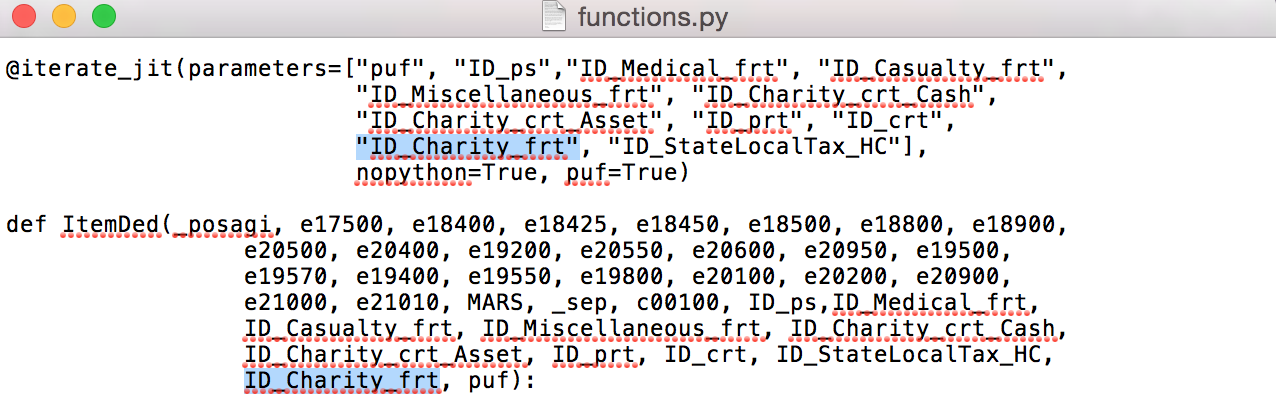
5. Add the relevant code to the function.
In step 4, we told the Tax Calculator the name of our new tax parameter. In this step, we add code to the function ItemDed() to calculate the charitable deduction amount using the new charitable deduction floor rate.
We add the following code under the “Charity” subheading inside ItemDed():
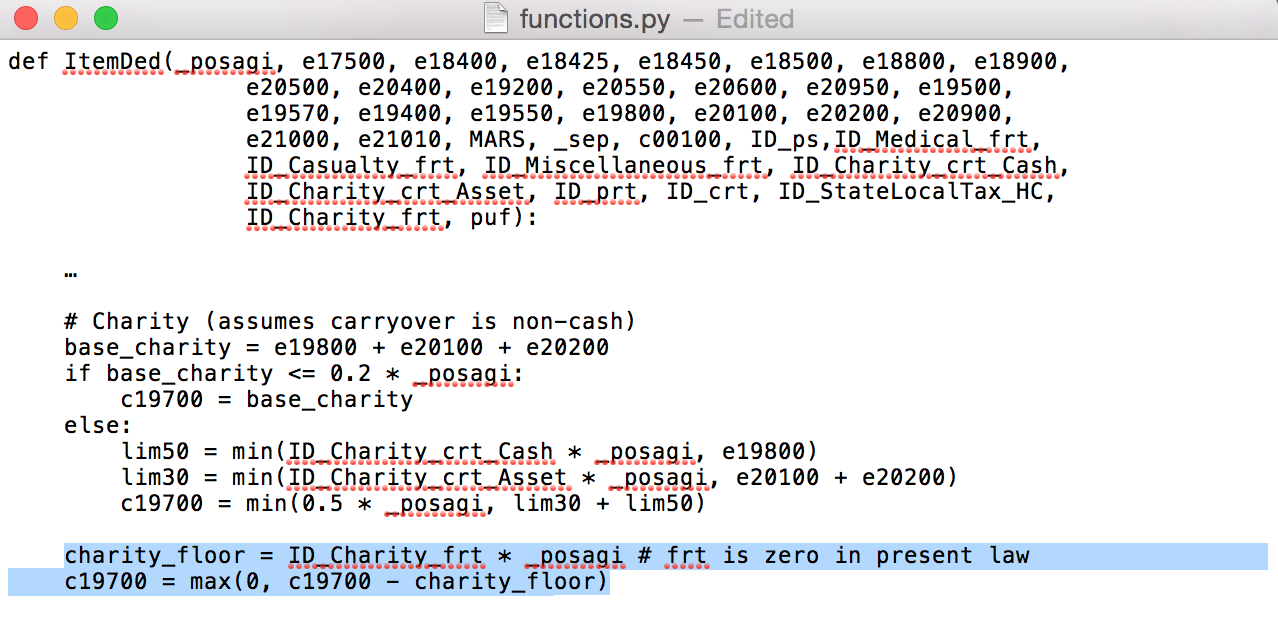
The first line of the highlighted code calculates the amount of charitable expense that an individual must exceed to claim the charitable deduction by multiplying the floor rate that we defined in params.json with positive Adjusted Gross Income. The second line sets the total charitable deduction amount to zero or, if greater than zero, to the individual’s total charitable expenses minus the charity_floor variable.
6. Test and save your code changes.
For details on how to test and save your changes before sharing them with the Tax Calculator team, return to the Contributor Guide and continue with Step 4 of the Workflow section.
| [1] | Currently, the tax parameters in params.json are in no particular order. This undefined layout is likely to change in the future as we move to organize the file. |